我们经常会有多行多列按钮的页面, 这个时候我们通常会选择循环创建按钮, 然后进行按钮单选或者多选的操作!
一. 单选逻辑处理
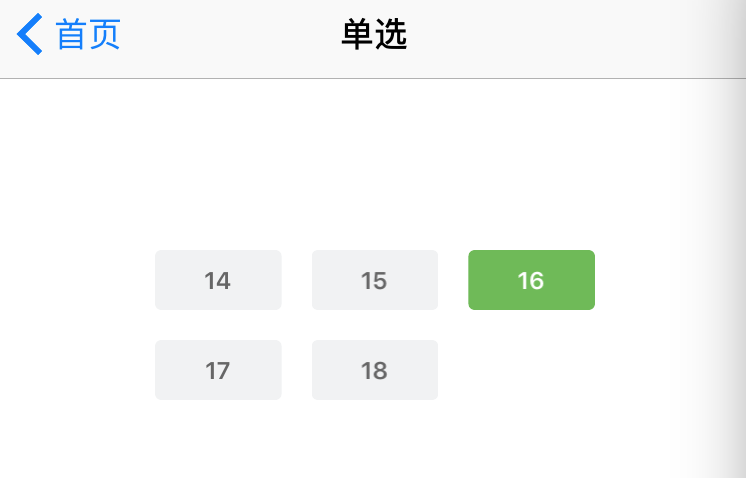
1. 创建按钮控件数组及标签数组, 并升级当前选中按钮为属性,方便使用
#define ZLUnselectedColor [UIColor colorWithRed:(241)/255.0 green:(242)/255.0 blue:(243)/255.0 alpha:1.0]
#define ZLSelectedColor [UIColor colorWithRed:(108)/255.0 green:(187)/255.0 blue:(82)/255.0 alpha:1.0]

@interface ZLRadioViewController ()

// 标签数组(按钮文字)
@property (nonatomic, strong) NSArray *markArray;

// 按钮数组
@property (nonatomic, strong) NSMutableArray *btnArray;

// 选中按钮
@property (nonatomic, strong) UIButton *selectedBtn;

@end
#pragma mark - 懒加载

- (NSArray *)markArray {
  if (!_markArray) {
    NSArray *array = [NSArray array];
    array = @[@"14", @"15", @"16", @"17", @"18"];
    _markArray = array;
  }
  return _markArray;
}

- (NSMutableArray *)btnArray {
  if (!_btnArray) {
    NSMutableArray *array = [NSMutableArray array];
    _btnArray = array;

  }
  return _btnArray;
}
2. 创建单选视图, 循环创建按钮, 并回显上次选中值
- (void)setupRadioBtnView {

  CGFloat UI_View_Width = [UIScreen mainScreen].bounds.size.width;
  CGFloat marginX = 15;
  CGFloat top = 100;
  CGFloat btnH = 30;
  CGFloat width = (250 - marginX * 4) / 3;

  // 按钮背景
  UIView *btnsBgView = [[UIView alloc] initWithFrame:CGRectMake((UI_View_Width - 250) * 0.5, 50, 250, 300)];
  btnsBgView.backgroundColor = [UIColor whiteColor];
  [self.view addSubview:btnsBgView];

  // 循环创建按钮
  NSInteger maxCol = 3;
  for (NSInteger i = 0; i < 5; i  ) {

    UIButton *btn = [UIButton buttonWithType:UIButtonTypeCustom];
    btn.backgroundColor = ZLUnselectedColor;
    btn.layer.cornerRadius = 3.0; // 按钮的边框弧度
    btn.clipsToBounds = YES;
    btn.titleLabel.font = [UIFont boldSystemFontOfSize:12];
    [btn setTitleColor:[UIColor colorWithRed:(102)/255.0 green:(102)/255.0 blue:(102)/255.0 alpha:1.0] forState:UIControlStateNormal];
    [btn setTitleColor:[UIColor whiteColor] forState:UIControlStateSelected];
    [btn addTarget:self action:@selector(chooseMark:) forControlEvents:UIControlEventTouchUpInside];
    NSInteger col = i % maxCol; //列
    btn.x = marginX   col * (width   marginX);
    NSInteger row = i / maxCol; //行
    btn.y = top   row * (btnH   marginX);
    btn.width = width;
    btn.height = btnH;
    [btn setTitle:self.markArray[i] forState:UIControlStateNormal];
    [btnsBgView addSubview:btn];
    btn.tag = i;
    [self.btnArray addObject:btn];
  }

  // 创建完btn后再判断是否能选择(之前是已经选取过的)
  // 假数据:之前已经上传16时,则回显16
  for (UIButton *btn in btnsBgView.subviews) {
    if ([@"16" isEqualToString:btn.titleLabel.text]) {
      btn.selected = YES;
      btn.backgroundColor = ZLSelectedColor;
      break;
    }
  }
}
3. 数字按钮单选处理, 根据tag值去判断是否是当前选中按钮
- (void)chooseMark:(UIButton *)sender {
  NSLog(@"点击了%@", sender.titleLabel.text);

  self.selectedBtn = sender;

  sender.selected = !sender.selected;

  for (NSInteger j = 0; j < [self.btnArray count]; j  ) {
    UIButton *btn = self.btnArray[j] ;
    if (sender.tag == j) {
      btn.selected = sender.selected;
    } else {
      btn.selected = NO;
    }
    btn.backgroundColor = ZLUnselectedColor;
  }

  UIButton *btn = self.btnArray[sender.tag];
  if (btn.selected) {
    btn.backgroundColor = ZLSelectedColor;
  } else {
    btn.backgroundColor = ZLUnselectedColor;
  }
}
二. 多选逻辑处理
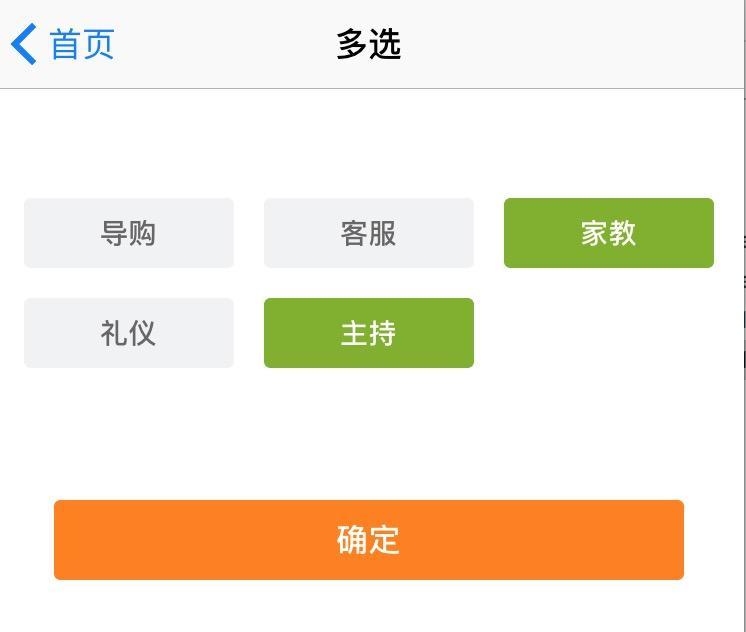
1. 创建按钮控件数组和标签字典, 及选中标签数组(数字)和选中标签数组(文字字符串), 为了展示及上传按钮数据使用
#define ZLUnselectedColor [UIColor colorWithRed:(241)/255.0 green:(242)/255.0 blue:(243)/255.0 alpha:1.0]
#define ZLSelectedColor [UIColor colorWithRed:(128)/255.0 green:(177)/255.0 blue:(34)/255.0 alpha:1.0]

@interface ZLMultiselectController ()

// 标签数组
@property (nonatomic, strong) NSArray *markArray;

// 标签字典
@property (nonatomic, strong) NSDictionary *markDict;

// 选中标签数组(数字)
@property (nonatomic, strong) NSMutableArray *selectedMarkArray;

// 选中标签数组(文字字符串)
@property (nonatomic, strong) NSMutableArray *selectedMarkStrArray;

@end
#pragma mark - 懒加载

- (NSArray *)markArray {
  if (!_markArray) {
    NSArray *array = [NSArray array];
    array = @[@"导购", @"客服", @"家教", @"礼仪", @"主持"];
    _markArray = array;
  }
  return _markArray;
}

// 上传通过文字key取数字value发送数字
- (NSDictionary *)markDict {
  if (!_markDict) {
    NSDictionary *dict = [NSDictionary dictionary];
    dict = @{
         @"导购" : @"3" ,
         @"客服" : @"7",
         @"家教" : @"9",
         @"礼仪" : @"10",
         @"主持" : @"11",
         };
    _markDict = dict;
  }
  return _markDict;
}

- (NSMutableArray *)selectedMarkArray {
  if (!_selectedMarkArray) {
    _selectedMarkArray = [NSMutableArray array];
  }
  return _selectedMarkArray;
}

- (NSMutableArray *)selectedMarkStrArray {
  if (!_selectedMarkStrArray) {
    _selectedMarkStrArray = [NSMutableArray array];
  }
  return _selectedMarkStrArray;
}
2.循环创建按钮视图, 循环创建按钮
- (void)setupMultiselectView {

  CGFloat UI_View_Width = [UIScreen mainScreen].bounds.size.width;
  CGFloat marginX = 15;
  CGFloat top = 19;
  CGFloat btnH = 35;
  CGFloat marginH = 40;
  CGFloat height = 130;
  CGFloat width = (UI_View_Width - marginX * 4) / 3;

  // 按钮背景
  UIView *btnsBgView = [[UIView alloc] initWithFrame:CGRectMake(0, 100, UI_View_Width, height)];
  btnsBgView.backgroundColor = [UIColor whiteColor];
  [self.view addSubview:btnsBgView];

  // 循环创建按钮
  NSInteger maxCol = 3;
  for (NSInteger i = 0; i < 5; i  ) {

    UIButton *btn = [UIButton buttonWithType:UIButtonTypeCustom];
    btn.backgroundColor = ZLUnselectedColor;
    btn.layer.cornerRadius = 3.0; // 按钮的边框弧度
    btn.clipsToBounds = YES;
    btn.titleLabel.font = [UIFont boldSystemFontOfSize:14];
    [btn setTitleColor:[UIColor colorWithRed:(102)/255.0 green:(102)/255.0 blue:(102)/255.0 alpha:1.0] forState:UIControlStateNormal];
    [btn setTitleColor:[UIColor whiteColor] forState:UIControlStateSelected];
    [btn addTarget:self action:@selector(chooseMark:) forControlEvents:UIControlEventTouchUpInside];
    NSInteger col = i % maxCol; //列
    btn.x = marginX   col * (width   marginX);
    NSInteger row = i / maxCol; //行
    btn.y = top   row * (btnH   marginX);
    btn.width = width;
    btn.height = btnH;
    [btn setTitle:self.markArray[i] forState:UIControlStateNormal];
    [btnsBgView addSubview:btn];
  }

  // 确定按钮
  UIButton *surebtn = [UIButton buttonWithType:UIButtonTypeCustom];
  [surebtn setTitle:@"确定" forState:UIControlStateNormal];
  surebtn.frame = CGRectMake(marginX * 2, CGRectGetMaxY(btnsBgView.frame)   marginH, UI_View_Width - marginX * 4, 40);
  surebtn.titleLabel.font = [UIFont boldSystemFontOfSize:16];
  [surebtn addTarget:self action:@selector(sureBtnClick) forControlEvents:UIControlEventTouchUpInside];
  surebtn.backgroundColor = [UIColor orangeColor];
  surebtn.layer.cornerRadius = 3.0;
  surebtn.clipsToBounds = YES;
  [self.view addSubview:surebtn];
}
3. 按钮多选逻辑处理, 并上传数据请求处理
/**
 * 按钮多选处理
 */
- (void)chooseMark:(UIButton *)btn {

  btn.selected = !btn.selected;

  if (btn.isSelected) {
    btn.backgroundColor = ZLSelectedColor;
    [self.selectedMarkArray addObject:self.markDict[btn.titleLabel.text]];
    [self.selectedMarkStrArray addObject:btn.titleLabel.text];
  } else {
    btn.backgroundColor = ZLUnselectedColor;
    [self.selectedMarkArray removeObject:self.markDict[btn.titleLabel.text]];
    [self.selectedMarkStrArray removeObject:btn.titleLabel.text];
  }
}

/**
 * 确认接口请求处理
 */
- (void)sureBtnClick {
  // 用户选择标签后就把值上传, 也要传给服务器下次直接请求回来
  // 按钮数字标识字符串
  NSString *numStr = [self.selectedMarkArray componentsJoinedByString:@","];
  // 按钮文字字符串
  NSString *str = [self.selectedMarkStrArray componentsJoinedByString:@","];

  // 测试:拼接请求参数
  NSLog(@"按钮数字标识字符串:%@", numStr);
  NSLog(@"按钮文字字符串:%@", str);
}
以上就是本文的全部内容,希望对大家的学习有所帮助,也希望大家多多支持Devmax。