本文介绍了react-native 圆弧拖动进度条实现的示例代码,分享给大家,具体如下:
先上效果图
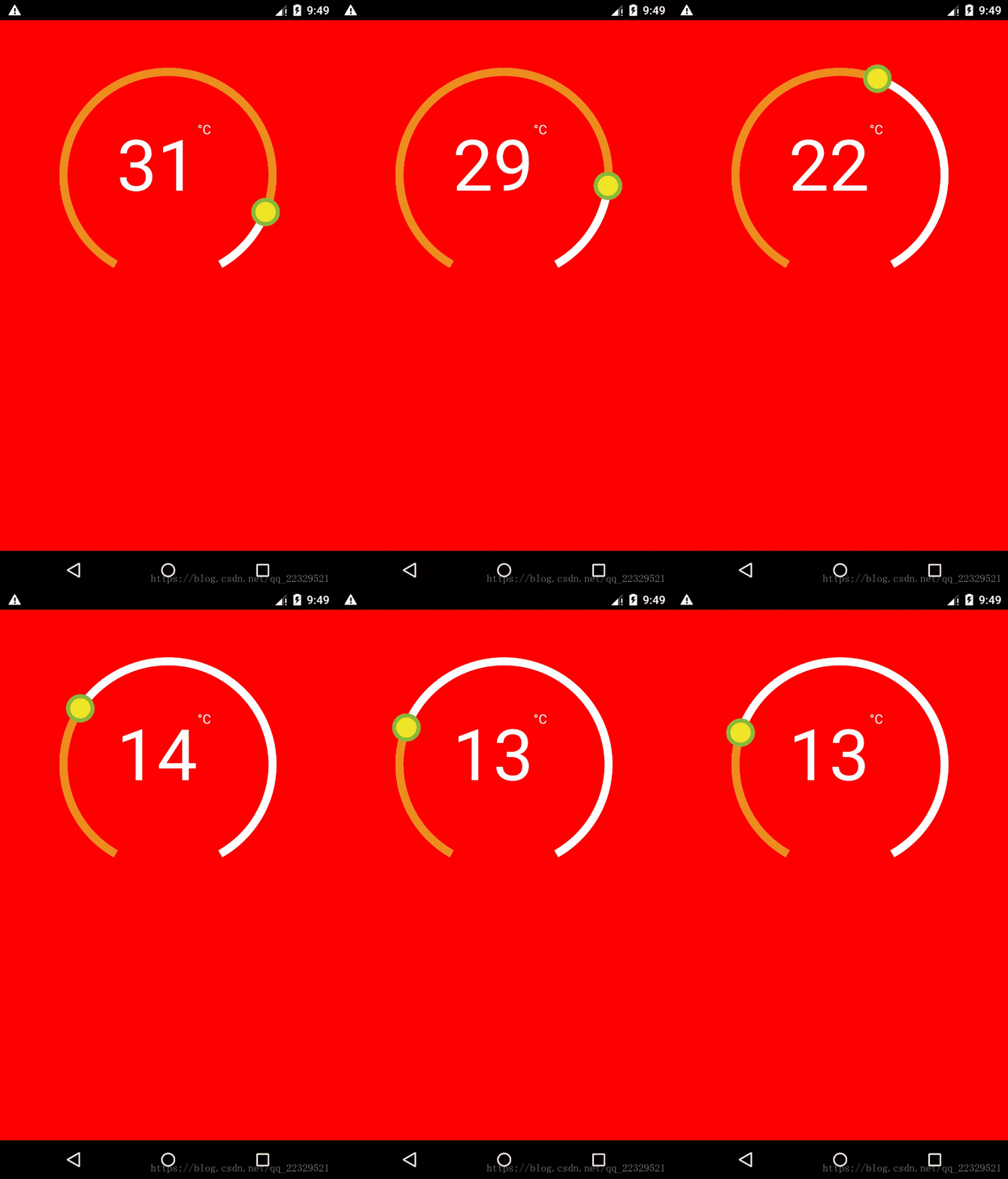
因为需求需要实现这个效果图 非原生实现,
- 难点1:绘制 使用svg
- 难点2:点击事件的处理
- 难点3:封装
由于绘制需要是使用svg
此处自行百度 按照svg以及api 教学
视图代码块
 render() {
 return (
  <View pointerEvents={'box-only'}
  //事件处理
  {...this._panResponder.panHandlers}>
  //实际圆环
  {this._renderCircleSvg()}
  // 计算中心距离
  <View
   style={{
   position: 'relative',
   top: -this.props.height / 2 - this.props.r,
   left: this.props.width / 2 - this.props.r,
   flex: 1,
   }}>
   // 暴露给外部渲染圆环中心的接口
   {this.props.renderCenterView(this.state.temp)}
  </View>
  </View>
 );


 _renderCircleSvg() {
 //中心点
 const cx = this.props.width / 2;
 const cy = this.props.height / 2;
 //计算是否有偏差角 对应图就是下面缺了一块的
 const prad = this.props.angle / 2 * (Math.PI / 180);
 //三角计算起点
 const startX = -(Math.sin(prad) * this.props.r)   cx;
 const startY = cy   Math.cos(prad) * this.props.r;
 //终点
 const endX = Math.sin(prad) * this.props.r   cx;
 const endY = cy   Math.cos(prad) * this.props.r;

 // 计算进度点
 const progress = parseInt(
  this._circlerate() * (360 - this.props.angle) / 100,
  10
 );
 // 根据象限做处理 苦苦苦 高中数学全忘了,参考辅助线
 const t = progress   this.props.angle / 2;
 const progressX = cx - Math.sin(t * (Math.PI / 180)) * this.props.r;
 const progressY = cy   Math.cos(t * (Math.PI / 180)) * this.props.r;

// SVG的描述 这里百度下就知道什么意思
 const descriptions = [
  'M',
  startX,
  startY,
  'A',
  this.props.r,
  this.props.r,
  0,
  1,
  1,
  endX,
  endY,
 ].join(' ');

 const progressdescription = [
  'M',
  startX,
  startY,
  'A',
  this.props.r,
  this.props.r,
  0,
  //根据角度是否是0,1 看下效果就知道了
  t >= 180   this.props.angle / 2 ? 1 : 0,
  1,
  progressX,
  progressY,
 ].join(' ');
 return (
  <Svg
  height={this.props.height}
  width={this.props.width}
  style={styles.svg}>
  <Path
   d={descriptions}
   fill="none"
   stroke={this.props.outArcColor}
   strokeWidth={this.props.strokeWidth} />
  <Path
   d={progressdescription}
   fill="none"
   stroke={this.props.progressvalue}
   strokeWidth={this.props.strokeWidth} />
  <Circle
   cx={progressX}
   cy={progressY}
   r={this.props.tabR}
   stroke={this.props.tabStrokeColor}
   strokeWidth={this.props.tabStrokeWidth}
   fill={this.props.tabColor} />
  </Svg>
 );
 }
}
事件处理代码块
// 参考react native 官网对手势的讲解
 iniPanResponder() {
 this.parseToDeg = this.parseToDeg.bind(this);
 this._panResponder = PanResponder.create({
  // 要求成为响应者:
  onStartShouldSetPanResponder: () => true,
  onStartShouldSetPanResponderCapture: () => true,
  onMoveShouldSetPanResponder: () => true,
  onMoveShouldSetPanResponderCapture: () => true,
  onPanResponderGrant: evt => {
  // 开始手势操作。给用户一些视觉反馈,让他们知道发生了什么事情!
  if (this.props.enTouch) {
   this.lastTemper = this.state.temp;
   const x = evt.nativeEvent.locationX;
   const y = evt.nativeEvent.locationY;
   this.parseToDeg(x, y);
  }
  },
  onPanResponderMove: (evt, gestureState) => {
  if (this.props.enTouch) {
   let x = evt.nativeEvent.locationX;
   let y = evt.nativeEvent.locationY;
   if (Platform.OS === 'android') {
   x = evt.nativeEvent.locationX   gestureState.dx;
   y = evt.nativeEvent.locationY   gestureState.dy;
   }
   this.parseToDeg(x, y);
  }
  },
  onPanResponderTerminationRequest: () => true,
  onPanResponderRelease: () => {
  if (this.props.enTouch) this.props.complete(this.state.temp);
  },
  // 另一个组件已经成为了新的响应者,所以当前手势将被取消。
  onPanResponderTerminate: () => {},
  // 返回一个布尔值,决定当前组件是否应该阻止原生组件成为JS响应者
  // 默认返回true。目前暂时只支持android。
  onShouldBlockNativeResponder: () => true,
 });
 }

//画象限看看就知道了 就是和中线点计算角度
parseToDeg(x, y) {
 const cx = this.props.width / 2;
 const cy = this.props.height / 2;
 let deg;
 let temp;
 if (x >= cx && y <= cy) {
  deg = Math.atan((cy - y) / (x - cx)) * 180 / Math.PI;
  temp =
  (270 - deg - this.props.angle / 2) /
   (360 - this.props.angle) *
   (this.props.max - this.props.min)
  this.props.min;
 } else if (x >= cx && y >= cy) {
  deg = Math.atan((cy - y) / (cx - x)) * 180 / Math.PI;
  temp =
  (270   deg - this.props.angle / 2) /
   (360 - this.props.angle) *
   (this.props.max - this.props.min)
  this.props.min;
 } else if (x <= cx && y <= cy) {
  deg = Math.atan((x - cx) / (y - cy)) * 180 / Math.PI;
  temp =
  (180 - this.props.angle / 2 - deg) /
   (360 - this.props.angle) *
   (this.props.max - this.props.min)
  this.props.min;
 } else if (x <= cx && y >= cy) {
  deg = Math.atan((cx - x) / (y - cy)) * 180 / Math.PI;
  if (deg < this.props.angle / 2) {
  deg = this.props.angle / 2;
  }
  temp =
  (deg - this.props.angle / 2) /
   (360 - this.props.angle) *
   (this.props.max - this.props.min)
  this.props.min;
 }
 if (temp <= this.props.min) {
  temp = this.props.min;
 }
 if (temp >= this.props.max) {
  temp = this.props.max;
 }
 //因为提供步长,所欲需要做接近步长的数
 temp = this.getTemps(temp);
 this.setState({
  temp,
 });
 this.props.valueChange(this.state.temp);
 }

 getTemps(tmps) {
 const k = parseInt((tmps - this.props.min) / this.props.step, 10);
 const k1 = this.props.min   this.props.step * k;
 const k2 = this.props.min   this.props.step * (k   1);
 if (Math.abs(k1 - tmps) > Math.abs(k2 - tmps)) return k2;
 return k1;
 }
完整代码块
import React, { Component } from 'react';
import { View, StyleSheet, PanResponder, Platform, Text } from 'react-native';
import Svg, { Circle, Path } from 'react-native-svg';

export default class CircleView extends Component {
 static propTypes = {
 height: React.PropTypes.number,
 width: React.PropTypes.number,
 r: React.PropTypes.number,
 angle: React.PropTypes.number,
 outArcColor: React.PropTypes.object,
 progressvalue: React.PropTypes.object,
 tabColor: React.PropTypes.object,
 tabStrokeColor: React.PropTypes.object,
 strokeWidth: React.PropTypes.number,
 value: React.PropTypes.number,
 min: React.PropTypes.number,
 max: React.PropTypes.number,
 tabR: React.PropTypes.number,
 step: React.PropTypes.number,
 tabStrokeWidth: React.PropTypes.number,
 valueChange: React.PropTypes.func,
 renderCenterView: React.PropTypes.func,
 complete: React.PropTypes.func,
 enTouch: React.PropTypes.boolean,
 };

 static defaultProps = {
 width: 300,
 height: 300,
 r: 100,
 angle: 60,
 outArcColor: 'white',
 strokeWidth: 10,
 value: 20,
 min: 10,
 max: 70,
 progressvalue: '#ED8D1B',
 tabR: 15,
 tabColor: '#EFE526',
 tabStrokeWidth: 5,
 tabStrokeColor: '#86BA38',
 valueChange: () => {},
 complete: () => {},
 renderCenterView: () => {},
 step: 1,
 enTouch: true,
 };
 constructor(props) {
 super(props);
 this.state = {
  temp: this.props.value,
 };
 this.iniPanResponder();
 }
 iniPanResponder() {
 this.parseToDeg = this.parseToDeg.bind(this);
 this._panResponder = PanResponder.create({
  // 要求成为响应者:
  onStartShouldSetPanResponder: () => true,
  onStartShouldSetPanResponderCapture: () => true,
  onMoveShouldSetPanResponder: () => true,
  onMoveShouldSetPanResponderCapture: () => true,
  onPanResponderGrant: evt => {
  // 开始手势操作。给用户一些视觉反馈,让他们知道发生了什么事情!
  if (this.props.enTouch) {
   this.lastTemper = this.state.temp;
   const x = evt.nativeEvent.locationX;
   const y = evt.nativeEvent.locationY;
   this.parseToDeg(x, y);
  }
  },
  onPanResponderMove: (evt, gestureState) => {
  if (this.props.enTouch) {
   let x = evt.nativeEvent.locationX;
   let y = evt.nativeEvent.locationY;
   if (Platform.OS === 'android') {
   x = evt.nativeEvent.locationX   gestureState.dx;
   y = evt.nativeEvent.locationY   gestureState.dy;
   }
   this.parseToDeg(x, y);
  }
  },
  onPanResponderTerminationRequest: () => true,
  onPanResponderRelease: () => {
  if (this.props.enTouch) this.props.complete(this.state.temp);
  },
  // 另一个组件已经成为了新的响应者,所以当前手势将被取消。
  onPanResponderTerminate: () => {},
  // 返回一个布尔值,决定当前组件是否应该阻止原生组件成为JS响应者
  // 默认返回true。目前暂时只支持android。
  onShouldBlockNativeResponder: () => true,
 });
 }
 componentWillReceiveProps(nextProps) {
 if (nextProps.value != this.state.temp) {
  this.state = {
  temp: nextProps.value,
  };
 }
 }
 parseToDeg(x, y) {
 const cx = this.props.width / 2;
 const cy = this.props.height / 2;
 let deg;
 let temp;
 if (x >= cx && y <= cy) {
  deg = Math.atan((cy - y) / (x - cx)) * 180 / Math.PI;
  temp =
  (270 - deg - this.props.angle / 2) /
   (360 - this.props.angle) *
   (this.props.max - this.props.min)
  this.props.min;
 } else if (x >= cx && y >= cy) {
  deg = Math.atan((cy - y) / (cx - x)) * 180 / Math.PI;
  temp =
  (270   deg - this.props.angle / 2) /
   (360 - this.props.angle) *
   (this.props.max - this.props.min)
  this.props.min;
 } else if (x <= cx && y <= cy) {
  deg = Math.atan((x - cx) / (y - cy)) * 180 / Math.PI;
  temp =
  (180 - this.props.angle / 2 - deg) /
   (360 - this.props.angle) *
   (this.props.max - this.props.min)
  this.props.min;
 } else if (x <= cx && y >= cy) {
  deg = Math.atan((cx - x) / (y - cy)) * 180 / Math.PI;
  if (deg < this.props.angle / 2) {
  deg = this.props.angle / 2;
  }
  temp =
  (deg - this.props.angle / 2) /
   (360 - this.props.angle) *
   (this.props.max - this.props.min)
  this.props.min;
 }
 if (temp <= this.props.min) {
  temp = this.props.min;
 }
 if (temp >= this.props.max) {
  temp = this.props.max;
 }

 temp = this.getTemps(temp);
 this.setState({
  temp,
 });
 this.props.valueChange(this.state.temp);
 }

 getTemps(tmps) {
 const k = parseInt((tmps - this.props.min) / this.props.step, 10);
 const k1 = this.props.min   this.props.step * k;
 const k2 = this.props.min   this.props.step * (k   1);
 if (Math.abs(k1 - tmps) > Math.abs(k2 - tmps)) return k2;
 return k1;
 }


 render() {
 return (
  <View pointerEvents={'box-only'} {...this._panResponder.panHandlers}>
  {this._renderCircleSvg()}
  <View
   style={{
   position: 'relative',
   top: -this.props.height / 2 - this.props.r,
   left: this.props.width / 2 - this.props.r,
   flex: 1,
   }}>
   {this.props.renderCenterView(this.state.temp)}
  </View>
  </View>
 );
 }

 _circlerate() {
 let rate = parseInt(
  (this.state.temp - this.props.min) *
  100 /
  (this.props.max - this.props.min),
  10
 );
 if (rate < 0) {
  rate = 0;
 } else if (rate > 100) {
  rate = 100;
 }
 return rate;
 }
 _renderCircleSvg() {
 const cx = this.props.width / 2;
 const cy = this.props.height / 2;
 const prad = this.props.angle / 2 * (Math.PI / 180);
 const startX = -(Math.sin(prad) * this.props.r)   cx;
 const startY = cy   Math.cos(prad) * this.props.r; // // 最外层的圆弧配置
 const endX = Math.sin(prad) * this.props.r   cx;
 const endY = cy   Math.cos(prad) * this.props.r;

 // 计算进度点
 const progress = parseInt(
  this._circlerate() * (360 - this.props.angle) / 100,
  10
 );
 // 根据象限做处理 苦苦苦 高中数学全忘了,参考辅助线
 const t = progress   this.props.angle / 2;
 const progressX = cx - Math.sin(t * (Math.PI / 180)) * this.props.r;
 const progressY = cy   Math.cos(t * (Math.PI / 180)) * this.props.r;

 const descriptions = [
  'M',
  startX,
  startY,
  'A',
  this.props.r,
  this.props.r,
  0,
  1,
  1,
  endX,
  endY,
 ].join(' ');

 const progressdescription = [
  'M',
  startX,
  startY,
  'A',
  this.props.r,
  this.props.r,
  0,
  t >= 180   this.props.angle / 2 ? 1 : 0,
  1,
  progressX,
  progressY,
 ].join(' ');
 return (
  <Svg
  height={this.props.height}
  width={this.props.width}
  style={styles.svg}>
  <Path
   d={descriptions}
   fill="none"
   stroke={this.props.outArcColor}
   strokeWidth={this.props.strokeWidth} />
  <Path
   d={progressdescription}
   fill="none"
   stroke={this.props.progressvalue}
   strokeWidth={this.props.strokeWidth} />
  <Circle
   cx={progressX}
   cy={progressY}
   r={this.props.tabR}
   stroke={this.props.tabStrokeColor}
   strokeWidth={this.props.tabStrokeWidth}
   fill={this.props.tabColor} />
  </Svg>
 );
 }
}

const styles = StyleSheet.create({
 svg: {},
});
外部调用
<View style={styles.container}>
  <CircleProgress
   width={width}
   height={height}
   r={r}
   angle={60}
   min={5}
   max={35}
   step={0.5}
   value={22}
   complete={temp => {

   }}
   valueChange={temp => {}}
   renderCenterView={temp => (
   <View style={{ flex: 1 }}>

   </View>
   )}
   enTouch={true} />
  </View>
以上就是本文的全部内容,希望对大家的学习有所帮助,也希望大家多多支持Devmax。